Mobile Access Guide — Android
To ensure seamless and secure access to our internal systems — such as Kili, OMS, Cratos, OC, QuickBI and more — from your Android phone, we are rolling out YunShu, the Android client of EagleCloud SASE.
With YunShu, you can:
- Securely connect to internal resources from your mobile device, anywhere
- Log in with your existing DingTalk account — no extra password to remember
- Access internal systems directly from your mobile browser
iOS users: please refer to Mobile Access Guide — iOS. The iOS client is named Transbay, not YunShu.
Step 1: Download YunShu
Open the YunShu download page and scan the QR code with your phone camera to download the Android version.
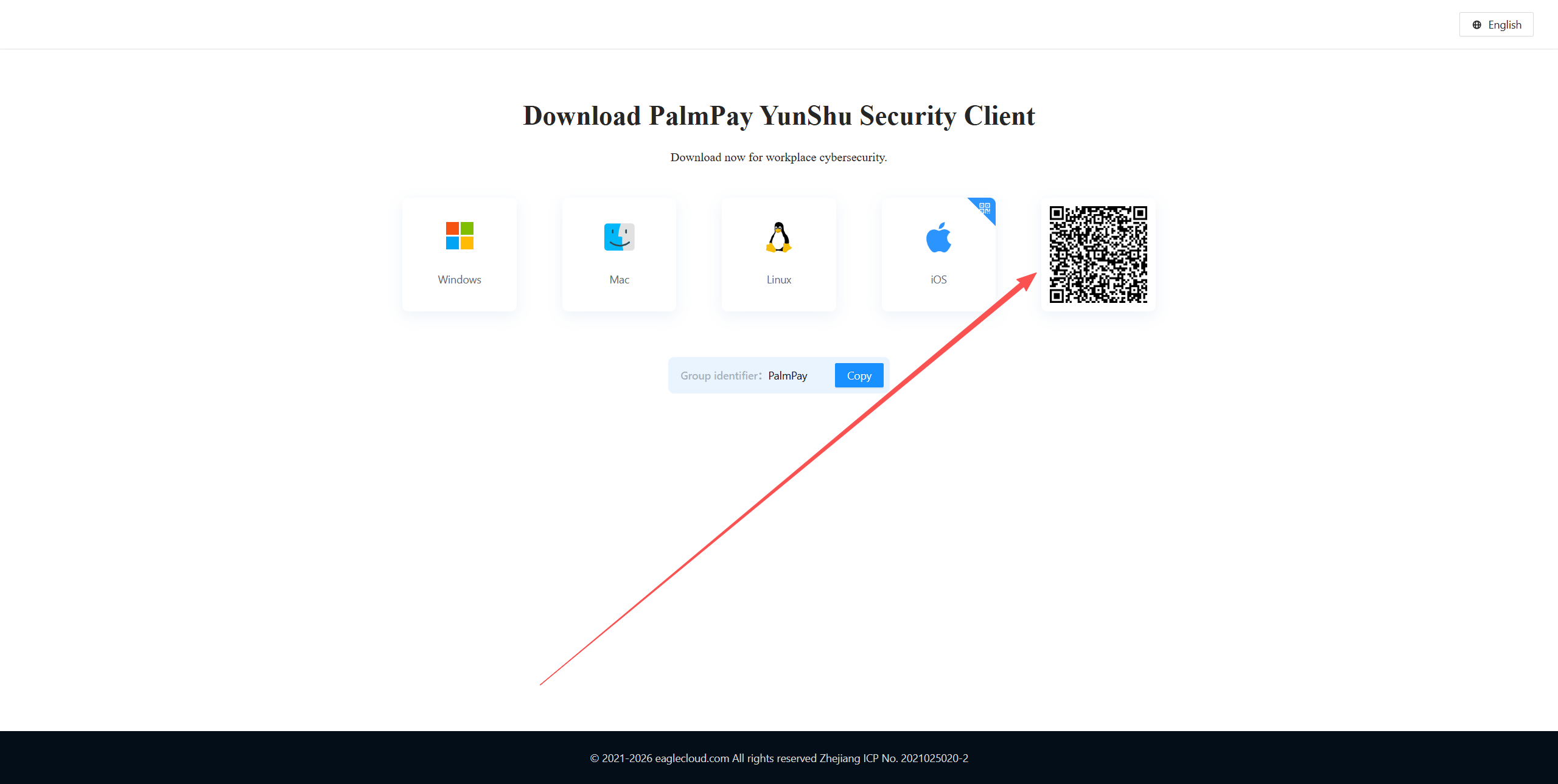
YunShu for Android is distributed as an APK and is not published on Google Play. Downloading from this page is expected.
Step 2: Install YunShu
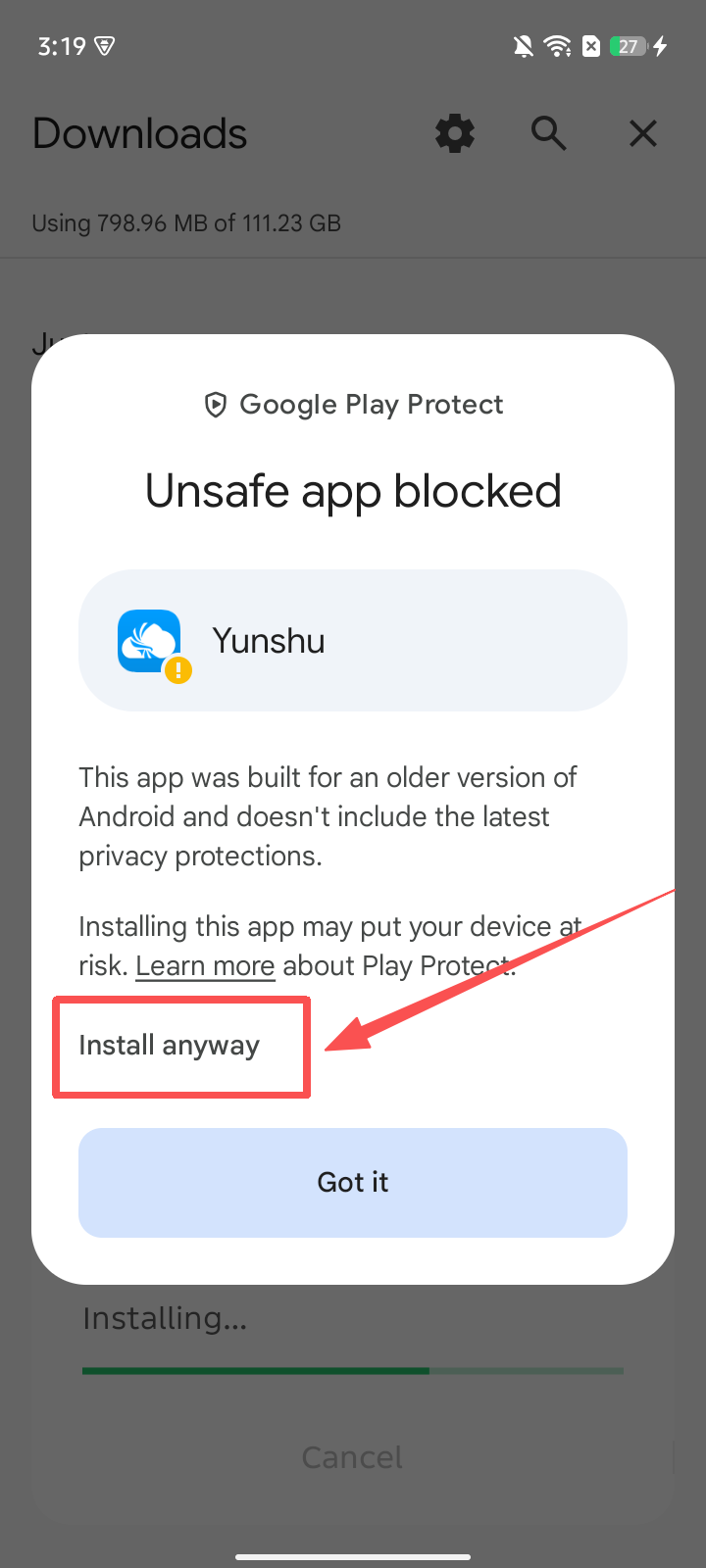
- If you see an "Unsafe app blocked" warning, tap More details, then Install anyway
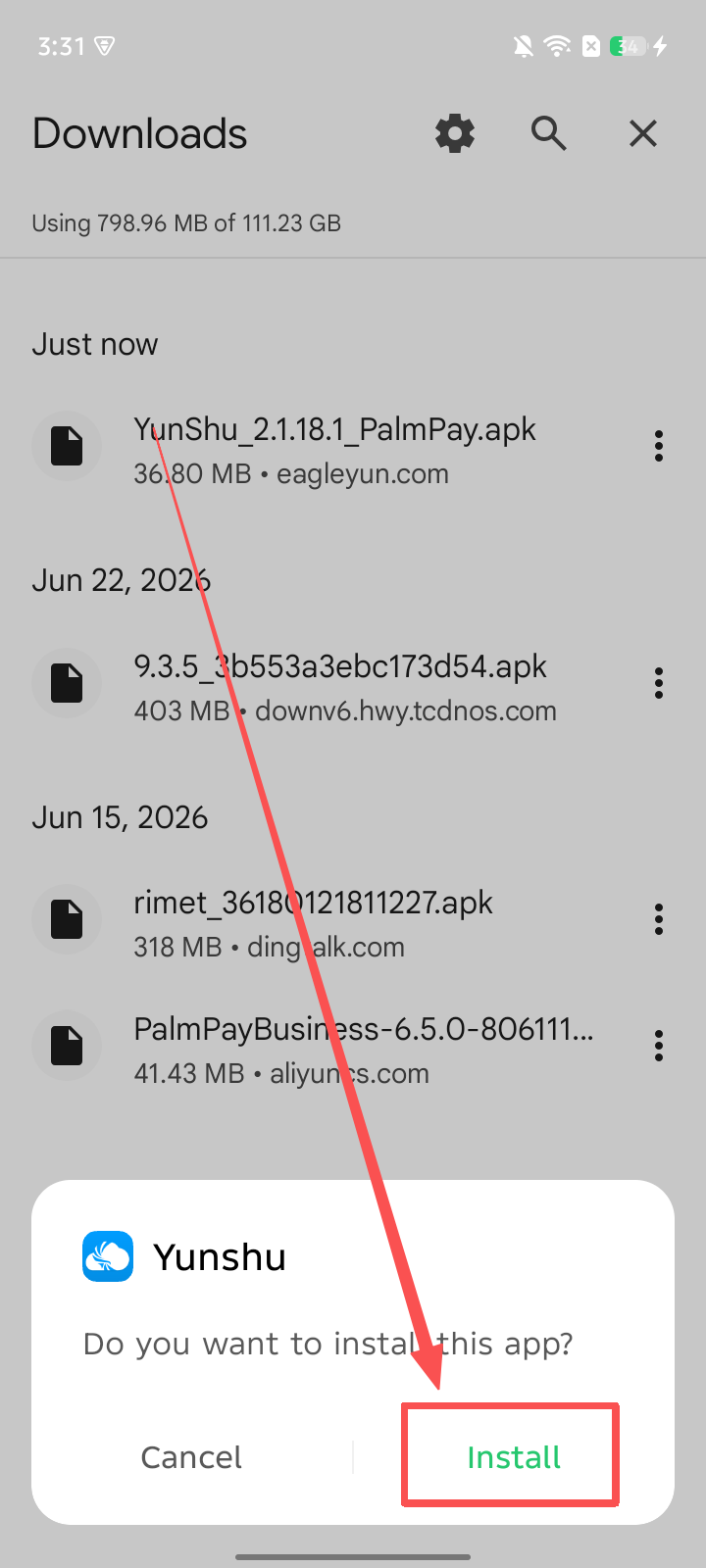
- Tap Install
Why does this warning appear?
Google Play Protect flags apps built for older Android API levels. This is a compatibility notice, not a malware detection — YunShu is the official PalmPay security client.
Please do not disable Google Play Protect. Tapping More details → Install anyway is sufficient. If the Install anyway option does not appear on your device, contact IT Support instead of changing your security settings.
Step 3: Log In with DingTalk
- Launch YunShu
- Enter
PalmPayas the enterprise identifier and tap Next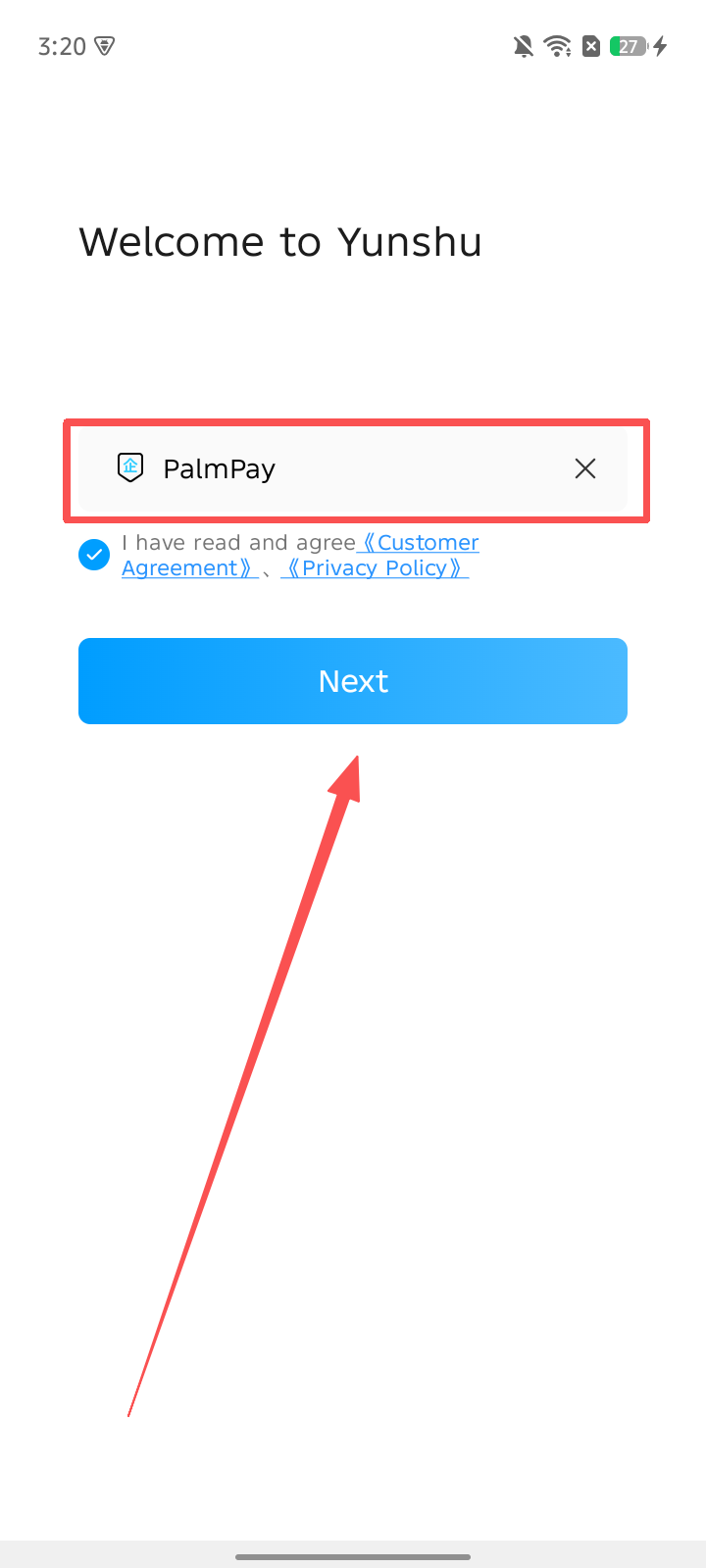
- Select the PalmPay organization and tap DingTalk Authorization
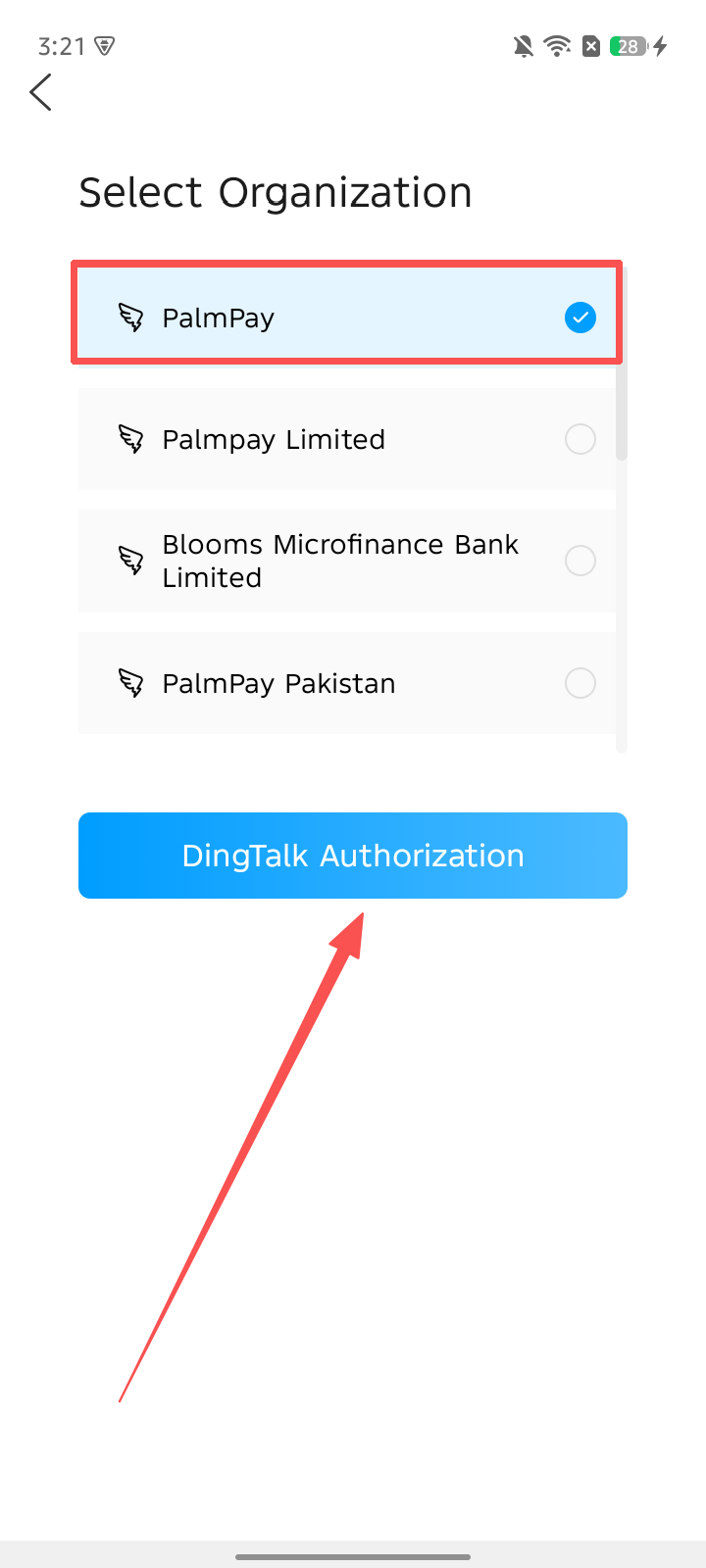
- Tap 授权 (Authorize) in DingTalk

Step 4: Connect to Internal Network
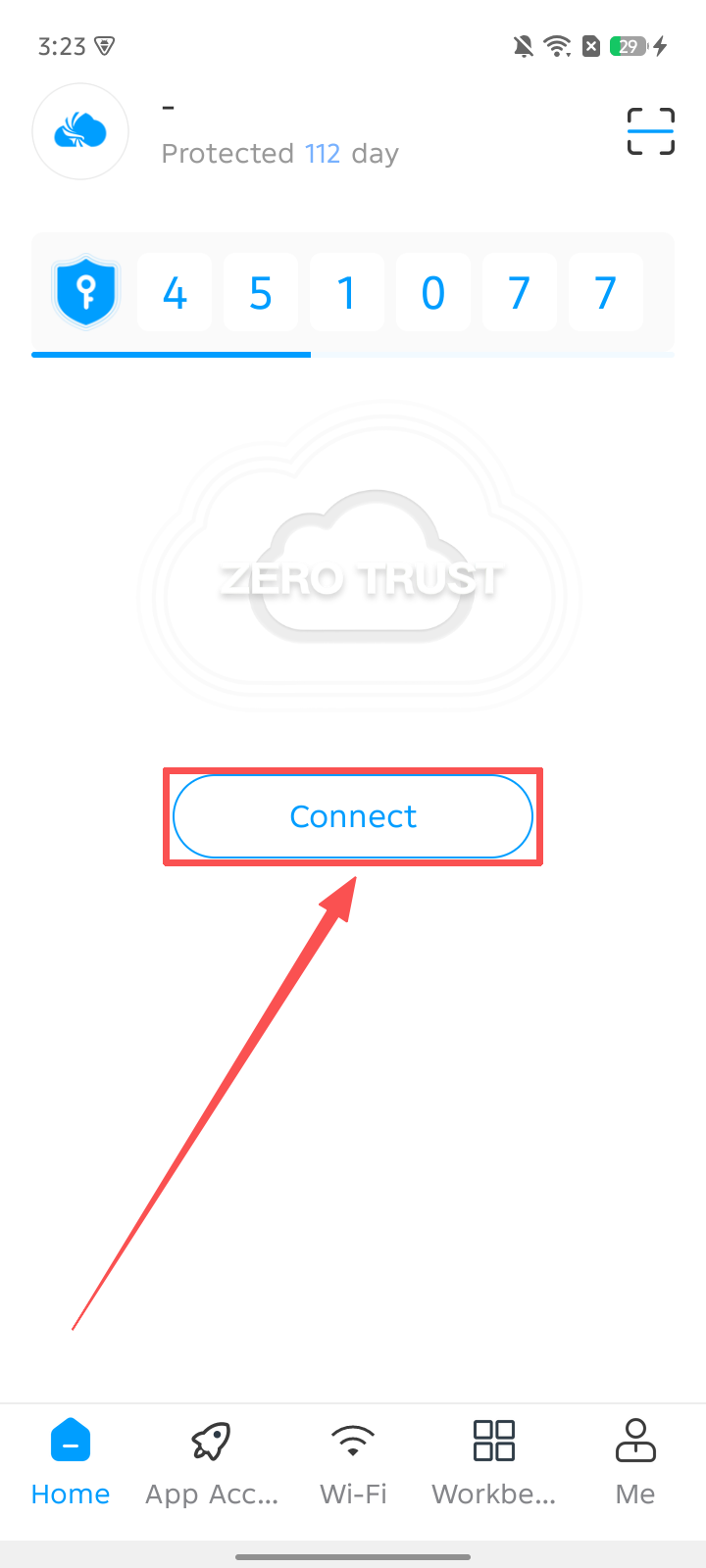
- Tap Connect on the home screen
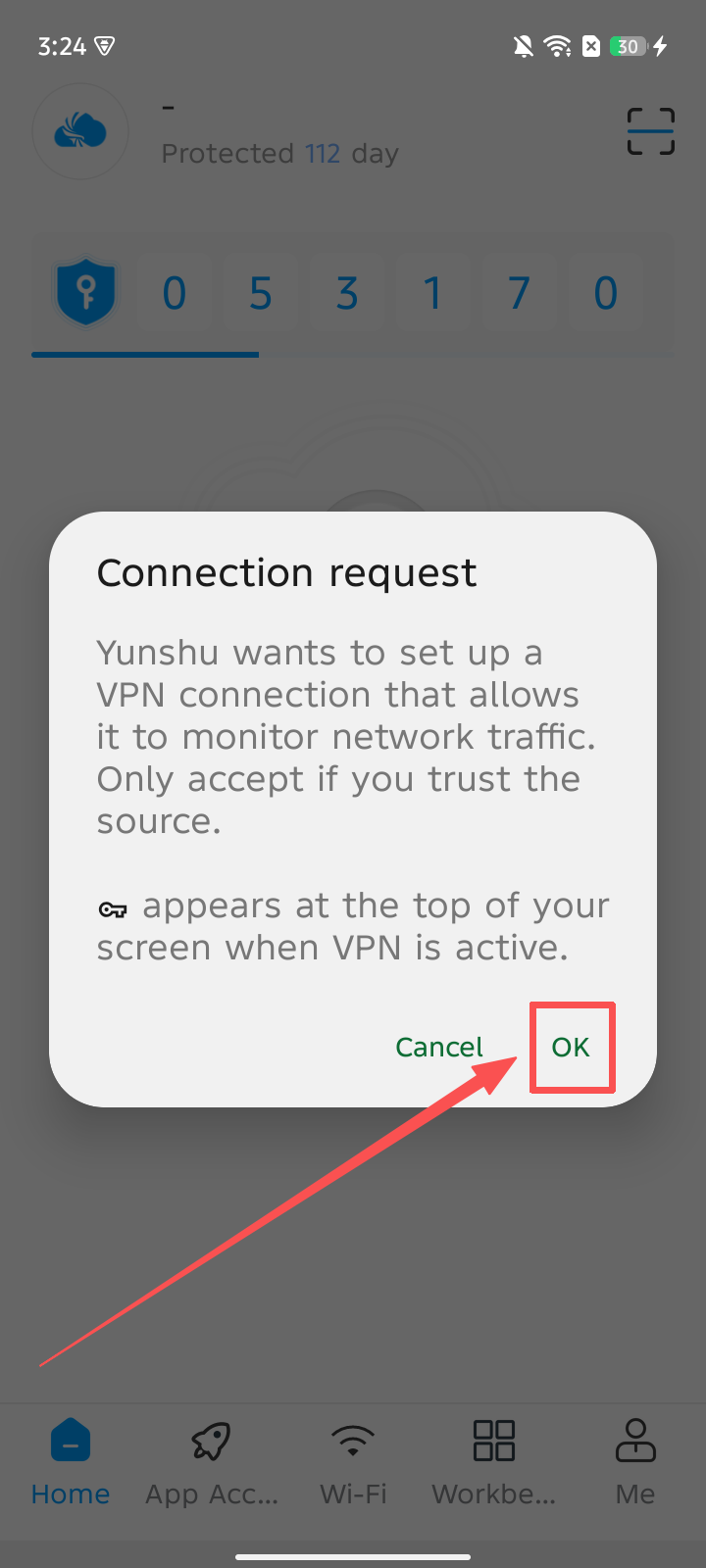
- Tap OK to allow the VPN connection request
- Connection successful — you can now access internal systems from your mobile browser
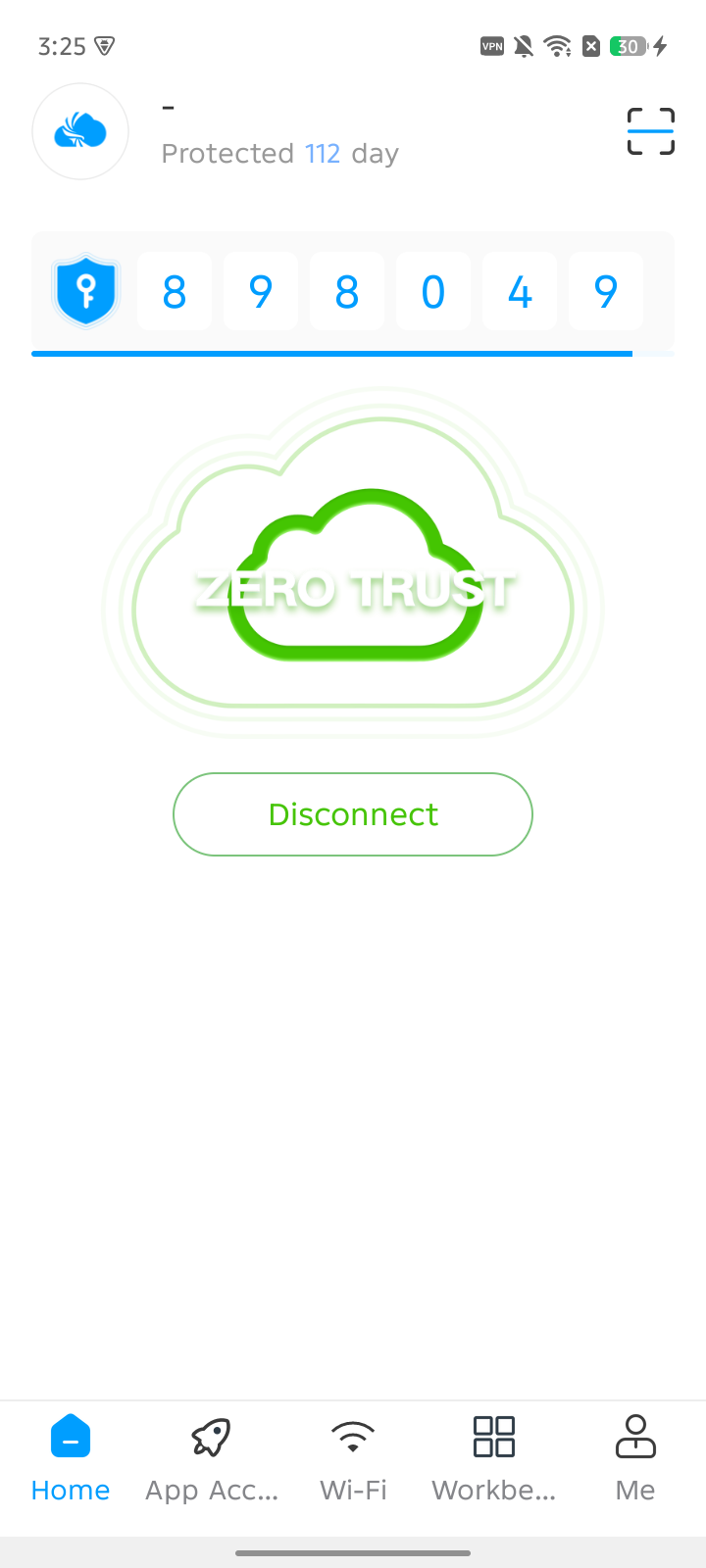
🎉 Congratulations! You're all set.
FAQ
| Question | Answer |
|---|---|
| "Unsafe app blocked" with no Install anyway option | Android 14+ applies a stricter policy. Contact IT Support — do not disable Play Protect. |
| "Install blocked from unknown sources" | Go to Settings → Apps → your browser → Allow from this source. |
| The enterprise identifier is rejected | It is exactly PalmPay — check spelling and capitalisation. |
| The DingTalk authorization page is blank | Install or update DingTalk, then retry. |
| The VPN disconnects after the screen locks | Battery optimisation is closing the app. Go to Settings → Battery and set YunShu to Unrestricted. |
| Two VPN apps conflict | Android allows only one active VPN. Disconnect other VPN apps first. |
| Connected, but an internal site will not open | The resource may not be published to the mobile gateway yet. Contact IT Support with the exact URL. |
| Do I need to keep YunShu running? | Yes, keep it running in the background to maintain access to internal systems. |
| Need more help? | Contact the IT Support team. |